

Overview
gentesty exchanges test cases and results as spreadsheets:
- Export test cases: all test cases of a bot as an Excel file (.xlsx) or a CSV file. The file also serves as a template for new test cases.
- Import test cases: an Excel or CSV file with one row per test case. The import creates new test cases or updates existing ones.
- Export results: all runs of a run group as an Excel file, with one sheet for the runs, one for the evaluations and one for the transcripts.
In the dashboard, a bot’s test cases are on its Evaluations tab.
Before you start
- You have created a chatbot or voicebot in gentesty, see Getting started.
- To import, you need a role that may create test cases, for example Owner, Workspace Administrator or Bot Administrator. To export, the Viewer role is enough. Without a suitable role, the buttons to import and export test cases are greyed out.
- The evaluators your file names already exist in gentesty. Tags that don’t exist yet can be created during the import, see step 3.
01 Export test cases as a template
gentesty Chatbots › Your bot › Evaluations
For voicebots, open the bot from Voicebot; the steps are the same. The buttons at the top right of the list show their name when you hover over them.
- Click Export Excel or Export CSV.
- Your browser downloads the file, for example
support-bot-case-configs.xlsxfor the bot Support Bot.
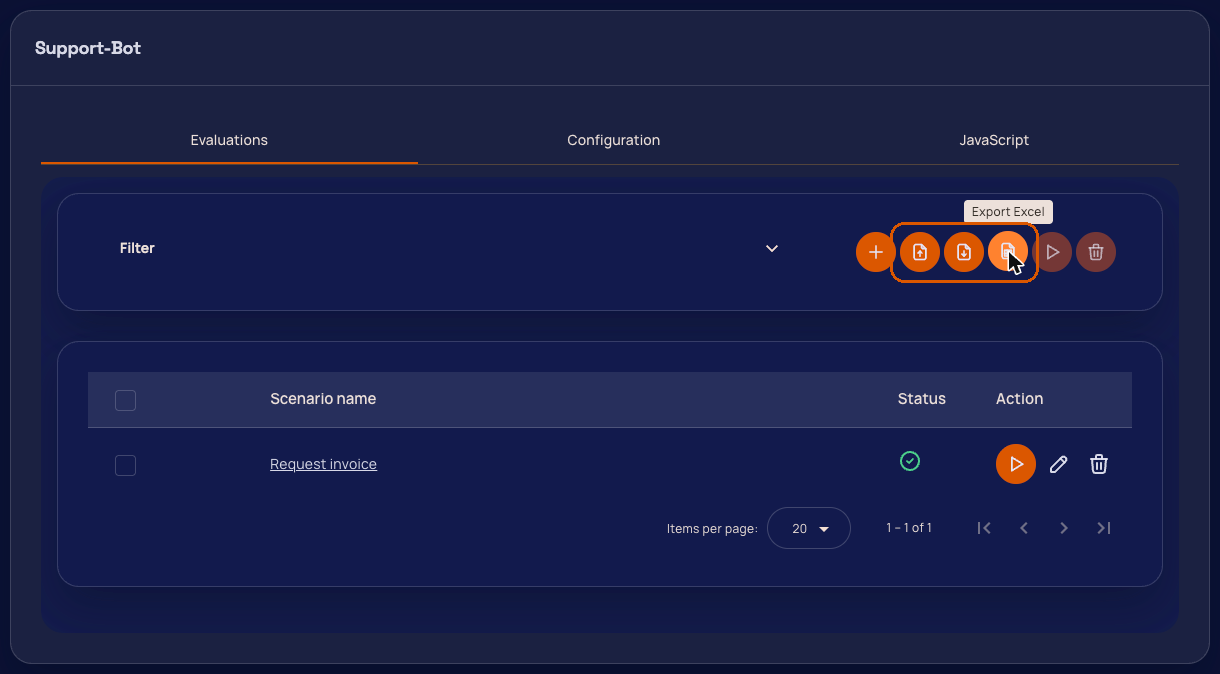
The file always contains all test cases of the bot, even if you have filtered the list. If the bot has no test cases yet, it contains only the header row, without columns for expected outputs. Add those yourself, see Columns of the import file.
02 Edit the file
Each row is one test case. The first row is the header row with the column names. Only the case_name column is
required. Leave out the columns you don’t need.
- New test case: leave
idempty or leave out the column. - Existing test case: keep the
idfrom the export and change the other cells. What gets overwritten is described under Create or update.
An example with two new test cases:
| case_name | initial_message | max_ping_pong | tag_names | evaluator_names | expected_type_1 | expected_content_1 | expected_type_2 | expected_content_2 |
|---|---|---|---|---|---|---|---|---|
| Request invoice | I need a copy of my last invoice. | 8 | Invoices;Smoke test | Answer quality | SEMANTIC_MATCH | The invoice is sent by email. | EXCLUDE_MATCH | password |
| Opening hours | When are you open? | Smoke test | Answer quality | PARTIAL_MATCH | Monday to Friday |
The first test case gets two tags and two expected outputs. In the second, max_ping_pong is empty, so gentesty uses
the default of 10. It has only one expected output; the cells of the second one stay empty.
03 Import the file
gentesty Chatbots › Your bot › Evaluations
- Click Import CSV or Excel. The Import dialog opens.
- Under Select import format, choose CSV or Excel (.xlsx). The file picker then only shows files of that type.
- Click the Upload file field and choose your file.
- Click Import.
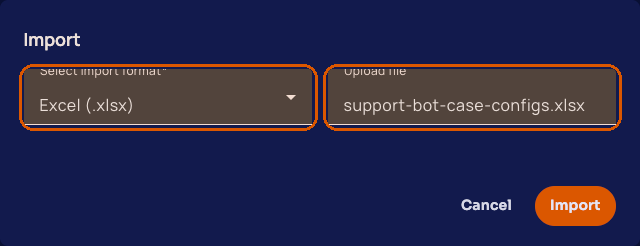
After the import, gentesty reports Case Configs successfully imported and the test cases appear in the list. All test cases in the file then belong to the bot on whose page you imported.
If the file names tags that don’t exist, gentesty asks before it imports anything. The dialog Check new tags lists each of these names with a field:
- The field holds the name from the file. Change it to fix a typo. If an existing tag differs only in upper and lower case, the field already holds that tag.
- If an existing tag is similar, the link Did you mean “…”? puts it in the field.
- Below the field you see what happens: Uses the existing tag. or Will be created as a new tag. New tags get the default color and no description; you can change both under Tags.
- Untick a name to leave it out.
Click Import to create the new tags and import the test cases, or Back to choose another file. Cancel imports nothing. Creating tags needs a role that may create tags and a plan with tags. Without them, the dialog shows You can’t create tags, so this one won’t be imported., and you can still choose an existing tag.
If the file names evaluators that don’t exist, you see the message Some names were not found for 15 seconds after the
import, with the missing names. The test cases are still imported, just without those evaluators. Create the missing
ones under Evaluators or fix the spelling, then add them to the test cases. Don’t simply import the same file again:
rows without an id create new test cases every time.
04 Export the results of a run group
gentesty Run Queue › Run Overview
Every start of runs forms a run group. The run overview lists the groups by date and time.
- Click a group to expand it.
- Above the table of runs, click Export results.
- Your browser downloads an Excel file, for example
run-results-2026-11-04-1530.xlsx. The date and time in the name are those of the run group.
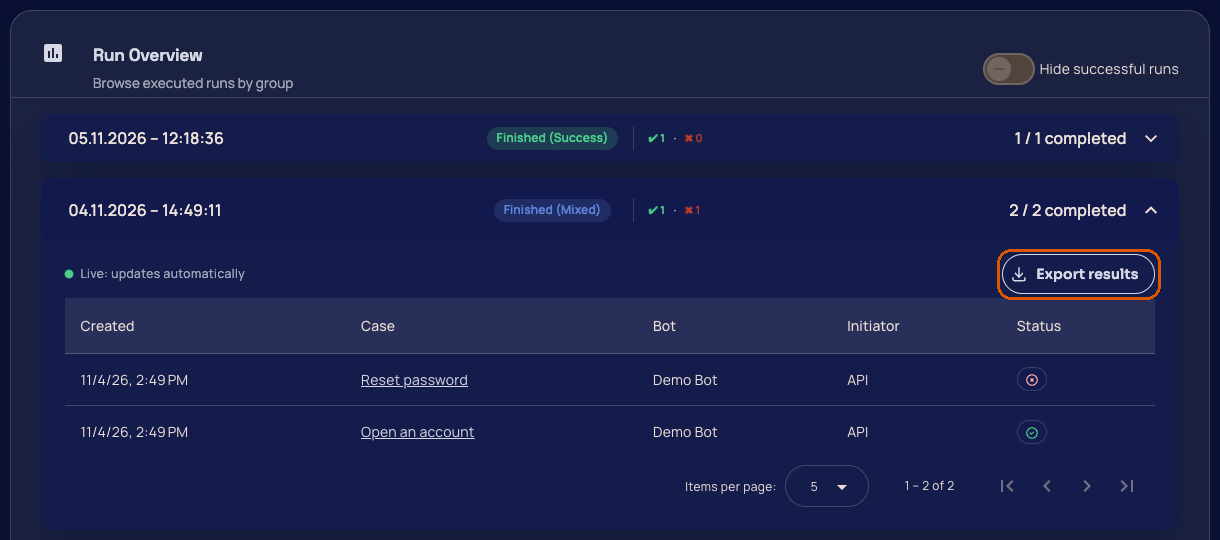
The file contains all runs of the group, even if Hide successful runs is switched on. Runs that are still going appear with their current status, so export once the group has finished. Sheet and column names, statuses and match types are in English if your dashboard shows English, otherwise in German. The layout is described under Sheets of the results file.
Columns of the import file
Write the column names exactly as shown here, in lower case. The order of the columns doesn’t matter. The import ignores columns with other names.
| Column | Required | Meaning |
|---|---|---|
id | No | ID of an existing test case, from the export. Empty: new test case. |
case_name | Yes | Evaluation Name. At most 500 bytes, which is about 500 characters. Accented letters count double. |
initial_message | No | Initial Message: the first message gentesty sends to your bot. |
context | No | Context: what gentesty knows when it plays the other side of the conversation, for example a role or customer data. |
conversation_finish_criteria | No | Conversation Finish Criteria: when gentesty ends the conversation. |
max_ping_pong | No | Max Ping Pong: the maximum number of message exchanges. Whole number from 2 to 999. Empty or invalid: 10. |
timeout_per_message | No | Timeout per message (in seconds). Whole number from 1 to 999. Empty or invalid: 10. |
evaluator_names | No | Names of the evaluators, separated by ;. See Tags and evaluators. |
tag_names | No | Names of the tags, separated by ;. See Tags and evaluators. |
expected_type_1 | Yes¹ | Match type of the first expected output, see Match types. |
expected_content_1 | Yes¹ | Expected text of the first expected output. |
expected_token_mode_1 | No | Only for TOKEN_MATCH: AND if every token phrase must appear, OR if one is enough. Empty or any other value: AND. |
expected_token_phrases_1 | No | Only for TOKEN_MATCH: the token phrases as a JSON list, for example ["invoice", "PDF"]. Empty: the expected text is the phrase. |
¹ Required for each expected output. For the second expected output, use expected_type_2, expected_content_2 and so
on, for the third the number 3. The expected_type_ and expected_content_ columns always belong together as a pair
with the same number. If both cells of a pair are empty in a row, that test case has no expected output there.
Match types
expected_type_ holds the value from the first column, in capitals and spelled exactly like this. The import does not
check this value.
| Value | In the dashboard | Met when |
|---|---|---|
FULL_MATCH | Exact Match | every character is identical: same letters, spaces, punctuation and accents. |
SEMANTIC_MATCH | Semantic Match | the everyday meaning is the same, even with different wording or additional, non-contradictory details. |
PARTIAL_MATCH | Partial Match | the entire expected text appears as one continuous piece in the actual text, exactly as written. |
TOKEN_MATCH | Token Match | all expected words appear as complete words, in any order, case-insensitive. |
EXCLUDE_MATCH | Not contained | the text does not appear. For several words, the entire phrase must not occur as one continuous piece. |
CONVERSATION_MATCH | Conversation statement | the statement holds for the whole conversation. All messages are checked together, the bot’s and gentesty’s. |
Tags and evaluators
- Separate several names with
;, as in the export:Invoices;Smoke test. Spaces around the separator don’t matter. - A comma works too: if gentesty can’t find a part with a comma as a whole, it splits it at the commas. So
Invoices, Smoke testworks as well, and names that contain a comma themselves are kept. - Write each name exactly as in gentesty, including upper and lower case.
- For tags that don’t exist, the import asks first, see step 3. It leaves out evaluators that don’t exist and lists them in the message Some names were not found.
Create or update
- A row with the
idof a test case of this bot updates that test case. - Every other row creates a new test case: without an
id, with an unknownid, or with theidof a test case from another bot. If you import the same file withoutidtwice, you have every test case twice. - To copy test cases to another bot, export them from the first bot and import the file into the second.
- An update takes every field from the row. Empty cells and missing columns empty the field. Tags, evaluators and expected outputs are replaced by those in the row. So it’s best to change existing test cases in a complete export.
- The phone number of a voicebot test case is not part of the file and stays unchanged.
- Test cases that aren’t in the file stay unchanged. The import deletes nothing.
File formats
Excel (.xlsx): gentesty reads only the first sheet. The first non-empty row is the header row; the import skips empty rows.
CSV: gentesty detects the separator from the header row: comma, semicolon or tab. Excel with Swiss or German regional settings saves CSV files with semicolons; that works as is. Every row needs as many columns as the header row. Save the file as UTF-8, otherwise accented letters don’t come through correctly. The CSV export from gentesty uses commas.
Sheets of the results file
Each sheet has a frozen header row with a filter. Times are date values in UTC that you can sort. The Run ID column links the rows of the three sheets.
Runs: one row per run, in the order the runs were created.
| Column | Content |
|---|---|
| Created (UTC) | When the run was created. |
| Case | Name of the test case. |
| Bot | Name of the bot. |
| Status | Queued, Starting, Running, Passed, Failed or Error. |
| Expected outputs met | Met out of all evaluated expected outputs, for example 3 / 4. Empty if nothing was evaluated. |
| Run time (s) | Run time in seconds, rounded to one decimal place. |
| Note | Why the run ended early: an error message, for example a timeout, reaching the maximum number of ping-pong rounds, or a bot message that repeated itself. Otherwise empty. |
| Run ID | ID of the run. |
Evaluations: one row per evaluator and expected output.
| Column | Content |
|---|---|
| Case, Bot, Run status | As on the Runs sheet. |
| Evaluator | Name of the evaluator. |
| Expected output | The expected text. |
| Expected match type | For example Semantic Match. |
| Result | Met or Not met. |
| Reason | The evaluator’s reason. |
| Actual message | The message that decided the result: the first one that met the expectation, otherwise the one that came closest. Empty if no message met any rule. For a Conversation statement, the messages the verdict rests on, with their number from the Transcripts sheet. |
| Calculated match type | The match type of that message. |
| Run ID | ID of the run. |
Transcripts: one row per message, without system messages.
| Column | Content |
|---|---|
| Case, Bot | As on the Runs sheet. |
| No. | Number of the message within the run, starting at 1. |
| Time (UTC) | When the message was sent. |
| Speaker | Bot for your bot, Gentesty for the messages gentesty sends as the other side. |
| Message | The text of the message. |
| Run ID | ID of the run. |
Limits
- An import file is at most 8 MB. An Excel file may unpack to at most 16 MB.
- An import file has at most 10,000 rows of test cases and 256 columns. A cell holds at most 64 KB.
- In the Excel export, a cell holds at most 32,767 characters. For longer fields, use the CSV export.
- The results export covers at most 5,000 runs per run group.
Troubleshooting
If an import fails, gentesty reports Case Configs could not be imported. In the first five cases of the table, gentesty takes over no row of the file at all.
| What you see | Cause | Solution |
|---|---|---|
| Import fails | The header row has no case_name column, or case_name is empty in a row. | Add the column and give every test case a name. |
| Import fails | A cell of the header row is empty, or a column name appears twice. | Delete empty columns, rename duplicates. |
| Import fails | A value in id is not a valid ID. | Take the value from the export or empty the cell. |
| Import fails | In a CSV file, a row has more or fewer columns than the header row. | Open the file in your spreadsheet program and save it as CSV again. |
| Import fails | The file exceeds a limit. | Split the test cases across several files. |
| Some names were not found | No evaluator with this name exists. | Check the spelling or create the evaluator, then add it to the test cases. |
| Test cases are duplicated | The file had no id, or the id belongs to another bot. | Delete the duplicates. For changes, edit a new export. |
| A field is empty after the import | The row had an id, but the column was missing or the cell was empty. | Enter the value and import again, see Create or update. |
| Accented letters are wrong | The CSV file is not saved as UTF-8. | Save it as UTF-8 or import an Excel file. |
| A field is longer than an Excel cell can hold (32,767 characters). Export as CSV instead. | A field of a test case is too long for Excel. | Use Export CSV. |
| The results could not be exported. | The run group has more than 5,000 runs. | Start runs in smaller groups or read the results through the API. |
Stuck? Contact us with the file and the time of the import.