

Overview
A test in gentesty has four parts:
| Term | Meaning |
|---|---|
| Chatbot | The bot you test, with the address of the web page it runs on. |
| Test case | A conversation gentesty has with your bot as a user, and the answers you expect along the way. |
| Evaluator | Compares your bot’s messages with the expected answers after the conversation. |
| Run | One execution of a test case: the conversation and its evaluation. |
In the dashboard, test cases are listed under Evaluations. This guide walks through every step with a chatbot. For voicebots, see Test a voicebot.
Before you start
- You are signed in to gentesty.
- Your chatbot runs on a web page that can be reached from the internet. gentesty opens this page during the test. It does not call addresses in your internal network.
- You know which request your bot should handle and which answers you expect.
- Your role allows you to create bots and test cases and to start runs. If a permission is missing, the button is greyed out.
01 Create a chatbot
gentesty Chatbots
Icon buttons show their name when you hover over them.
Click the plus icon Add Chatbot in the top right.
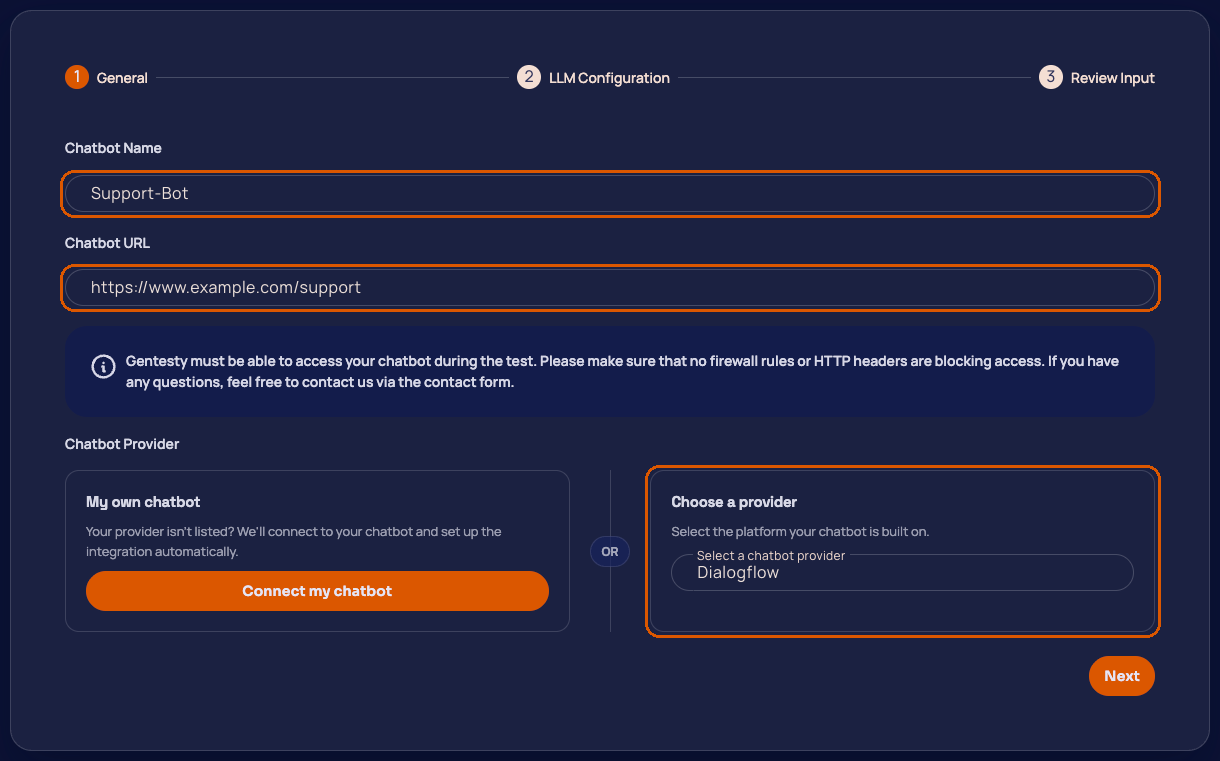
Fill in the fields in the General step:
Field Value Chatbot Name A name you recognise the bot by, for example Support bot.Chatbot URL The address of the web page your chatbot runs on. If https://is missing, gentesty adds it.Under Choose a provider, select the platform your chatbot is built on, for example Dialogflow, Kore.ai or Vapi. The choice appears once name and URL are filled in.
Click Next. gentesty now checks whether the URL can be reached.
If the LLM Configuration step appears, keep the preselected configuration and click Next. gentesty uses this language model to talk to your bot as a user and to check the conversation. Your own configuration through New LLM Configuration is available on the Enterprise plan.
Check your input in the Review Input step and click Save.
gentesty opens the new chatbot’s page with the tabs Evaluations and Configuration.
02 Create a test case
gentesty Chatbots › Your bot › Evaluations
A test case sets how the conversation starts, who the user is, when the conversation ends and which answers you expect from the bot.
In the Evaluations tab, click the plus icon Add evaluation config.
Fill in the Name step and click Next:
Field Value Evaluation Name For example Reset password.Tags Optional. Tags group test cases and let you filter by them. Max Ping Pong The maximum number of message exchanges in the conversation. Default: 10. Timeout per message (in seconds) How long gentesty waits for an answer from the bot at most. Default: 10. Fill in all fields in the Evaluation Details step:
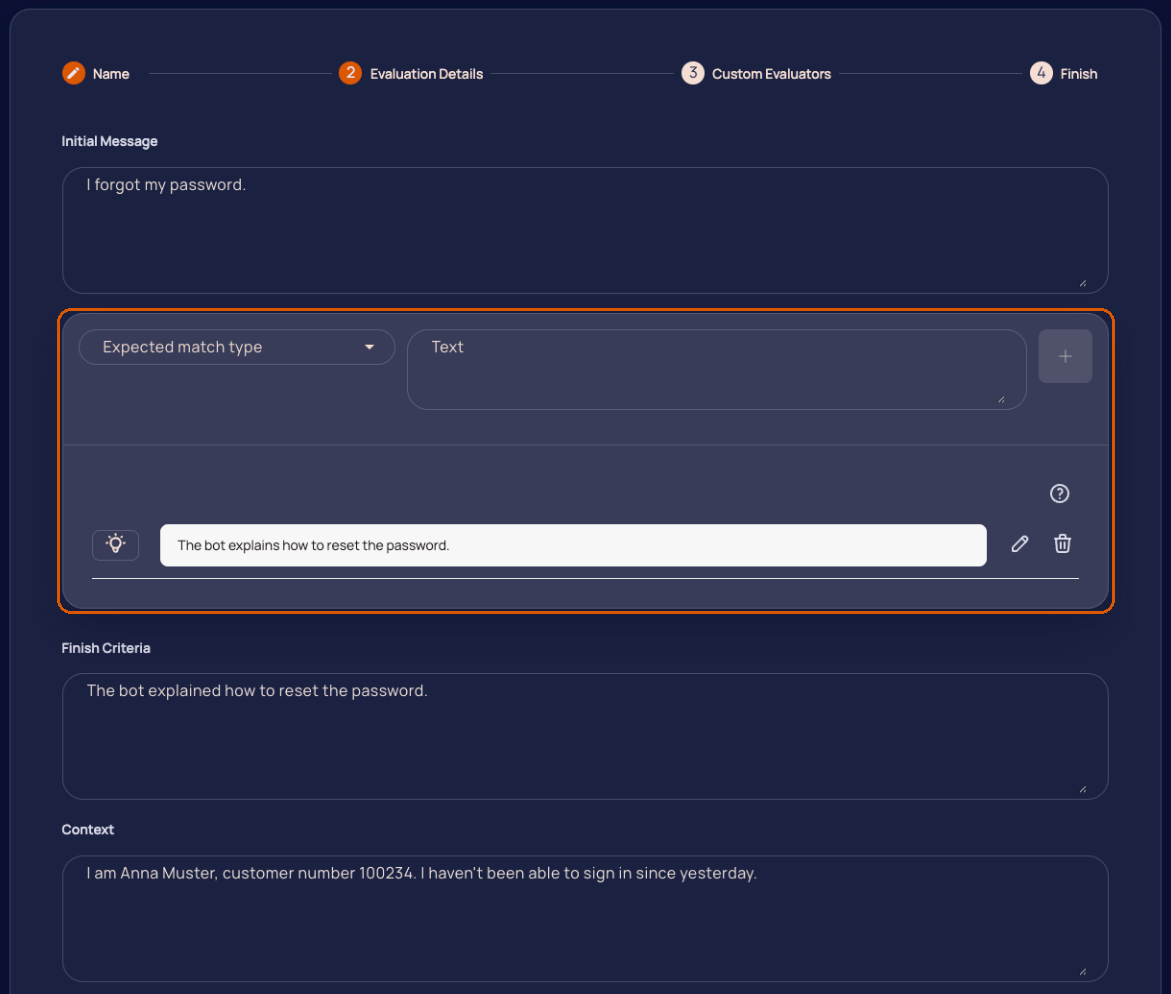
Field Value Initial Message The first message gentesty sends to your bot, for example I forgot my password.Finish Criteria How gentesty recognises that the conversation is over, for example The bot explained how to reset the password.Context Who the user is and what they know, for example name and customer number. gentesty uses it to answer the bot’s questions. In the same step, add the expected outputs: choose an Expected match type, enter the expected text and click the plus icon. Repeat this for every answer you expect. Then click Next.
Match type Met when a message from the bot … Exact Match is identical to the text, character for character. Semantic Match means the same, even if it is worded differently. Partial Match contains the text unchanged as one continuous piece. Token Match contains all words of one line in Token phrases, in any order and regardless of case. Token mode sets whether all lines (AND) or one (OR) must match. With Conversation statement, you check a statement about the whole conversation instead, for example “The chatbot does not ask again for information the user already gave”. gentesty then reads all messages together, the bot’s and its own. The result details show the reasoning and the messages it rests on.
An expected output is met as soon as a single message from the bot matches. The question mark icon to the right above the list shows examples for every match type.
In the Custom Evaluators step, select at least one evaluator, for example the Semantic Evaluator that every new workspace includes. Click Next.
Check your input in the Finish step and click Finish.
After the conversation, an evaluator checks every expected output against your bot’s messages and marks it as met or not met. If you select several evaluators, each one evaluates the run on its own. Your own evaluators, for example with your own prompt, are available from the Business plan through Create New Evaluator.
03 Start a run
gentesty Chatbots › Your bot › Evaluations
- In your test case’s row, click the play icon Start.
- gentesty shows Successfully started and opens the Run Queue.
To start several test cases at once, select them in the list and click the play icon at the top. The play icon on a bot’s card under Chatbots starts all test cases of that bot.
How a run works
- gentesty opens your chatbot’s web page and sends the Initial Message.
- gentesty reads each answer from the bot and replies as the user. What the user knows comes from the Context.
- After each answer from the bot, gentesty checks the Finish Criteria. Once they are met, the conversation ends and the evaluators evaluate it.
- If Max Ping Pong is reached before the finish criteria are met, the bot says the same thing too often in a row, or the conversation is over without the finish criteria being met, the conversation is stopped. The evaluators evaluate it up to that point, and the run counts as failed.
The Run Queue shows runs that have not finished yet, with the status Queued, Starting or Running. Finished runs leave the list and appear below in the Run Overview. You can stop a run that is still Queued with Cancel.
04 Read the result
gentesty Run Queue › Run Overview
Every start forms a group in the Run Overview, with date, time and the number of passed (✔) and failed (✖) runs. While runs are in progress, the group updates itself.
- Open the group of your start.
- In the Case column, click the name of your test case. The run’s page opens.
The icon in the Status column shows the status when you hover over it:
| Status | Meaning |
|---|---|
| Passed | At least one evaluator marked all expected outputs as met. |
| Failed | No evaluator marked all expected outputs as met, or the conversation was not evaluated. |
| Error | The run could not be completed. |
The run’s page has these sections:
| Section | Content |
|---|---|
| Evaluations | One card per evaluator with the overall result and one result per expected output. If an expected output is not met, Reason gives the cause. |
| Configuration | The values the run used, in the tabs Initial Message, Context, Finish Criteria and Expected Outputs. |
| Run Details | The conversation under Messages. While the run is in progress, Live View is on and new messages appear right away. Show system messages shows or hides gentesty’s notices, for example why a conversation ended. |
If the run has an evaluation, Evaluations is open, otherwise Run Details. With access to billing, you also see the run’s Costs.
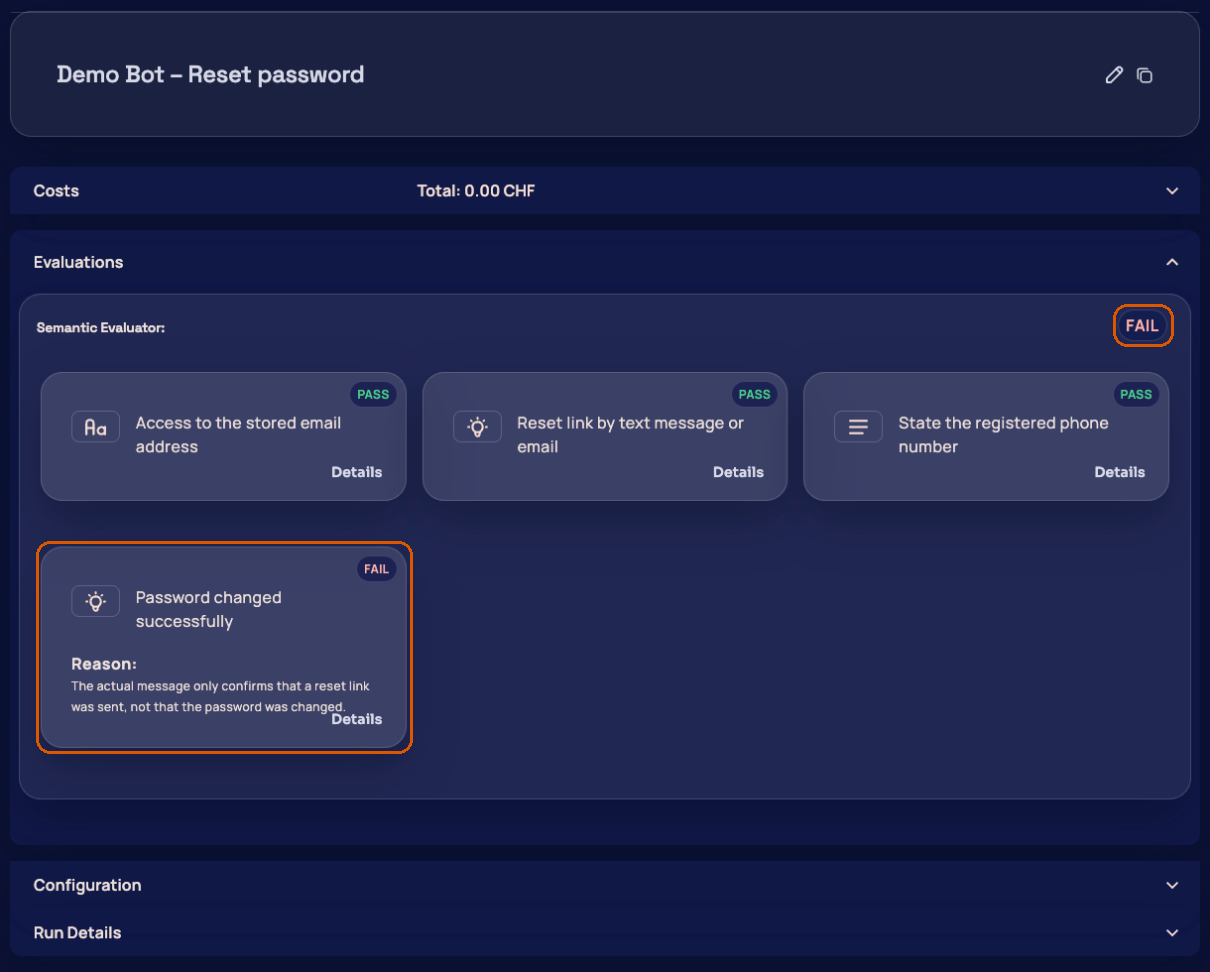
You also see a test case’s latest runs in the Status column of the Evaluations tab. Clicking an icon opens the run. Export results downloads all runs of a group as an Excel file, see Import test cases and export results.
What’s next?
- Connect your own chatbot if your platform is not listed.
- Test a voicebot if you test a phone bot.
- Import test cases and export results to maintain many test cases.
- Start runs through the API to start tests from your CI pipeline (Enterprise plan).
Troubleshooting
| What you see | Cause | Solution |
|---|---|---|
| We couldn’t reach this URL. under Chatbot URL | gentesty cannot reach the page, or the page answers with an error. gentesty does not call addresses in internal networks. | Enter a publicly reachable address. Check whether a firewall or an HTTP header blocks access. |
| No provider choice in the General step | Chatbot Name or Chatbot URL is empty. | Fill in both fields. |
| Add Chatbot is greyed out, You can create up to … bots | Your plan allows no more bots. Chatbots and voicebots count together. | Delete a bot you no longer need, or change your plan. |
| Next stays greyed out in the Evaluation Details step | A field is empty, or there is no expected output yet. | Fill in all fields and add the expected output with the plus icon. |
| Message No test cases | The bot has no test case yet. | Create a test case, see step 2. |
| Message Monthly cap reached | Your workspace’s monthly cap is used up. New runs are blocked until next month. | Wait until next month or contact us. |
| Start is greyed out, Insufficient balance to start a run. | Your balance does not cover a run. | Check your payment details under Account › Payment Details. |
Above Evaluations it says Conversation stopped, Messages shows Max Ping Pong reached. Increase if you want to have a longer conversation | The finish criteria were not met within Max Ping Pong. | Word the finish criteria so your bot can meet them in the conversation, or increase the value. |
Above Evaluations it says Conversation stopped, Messages shows The chatbot said the same thing 3 times in a row, so the conversation was stopped. | Your bot said the same thing several times in a row, also in other words. Set how often under Stop after repeated bot messages in a row on the bot or the test case. | Check the conversation under Messages. A more precise Initial Message or more Context often helps. |
Above Evaluations it says Conversation stopped, Messages shows The conversation ended without reaching the finish criterion, so it was stopped. | The test customer said goodbye and your bot had nothing more to add, but the finish criteria were not met. Often the bot closed the request differently than expected, for example with an error message or a handover to a person. | Check the conversation under Messages. If the other outcome is valid too, word the finish criteria so they cover both outcomes. You can turn the stop off under Stop the conversation when it is over on the bot or the test case. |
| Evaluations is empty, the conversation ended normally | The test case has no evaluator. | Edit the test case with the pencil icon in the Evaluations tab and add an evaluator in the Evaluator tab through Link Evaluator Configuration. |
Stuck? Contact us with the name of the bot and the test case and the time of the run.