
What goes where
Setup is a short back-and-forth between two admin screens. Keep a gentesty tab and an Entra tab open side by side and carry these values across.
| Value | Copy from | Paste into |
|---|---|---|
| Redirect URI | gentesty: Single Sign-On, bottom of the provider card | Entra: App registration, Authentication |
| Sign-out URI | The redirect URI with /logout_response added | Entra: App registration, Authentication |
| Directory (tenant) ID | Entra: App registration, Overview | gentesty: Tenant ID |
| Application (client) ID | Entra: App registration, Overview | gentesty: Client ID |
| Client secret value | Entra: Certificates & secrets | gentesty: Client Secret |
| Group Object ID | Entra: Groups, your group, Overview | gentesty: Role Mapping, External Group |
The screenshots use the example organization Contoso and placeholder IDs.
Before you begin
- Your gentesty workspace is on the Enterprise plan.
- In gentesty you have the Owner or Workspace Administrator role.
- In Microsoft Entra you can register applications and grant admin consent, for example as Application Administrator or Cloud Application Administrator.
- You have an Entra security group for each set of people who should get the same gentesty role.
- Your Entra users have an email address in their profile. gentesty uses it to recognise people.
01 Copy the redirect URI
gentesty Account › User Management › Single Sign-On
| Field | Value |
|---|---|
| Enable SSO | On |
| Provider Preset | Microsoft Entra ID |
| Provider Alias | entra, prefilled by the preset. Lowercase, no spaces. The alias is part of the redirect URI, so changing it later means updating Entra too. With entra the sign-in page shows the Microsoft logo. |
| Display Name | The label of the sign-in button, prefilled with Sign in with Microsoft. |
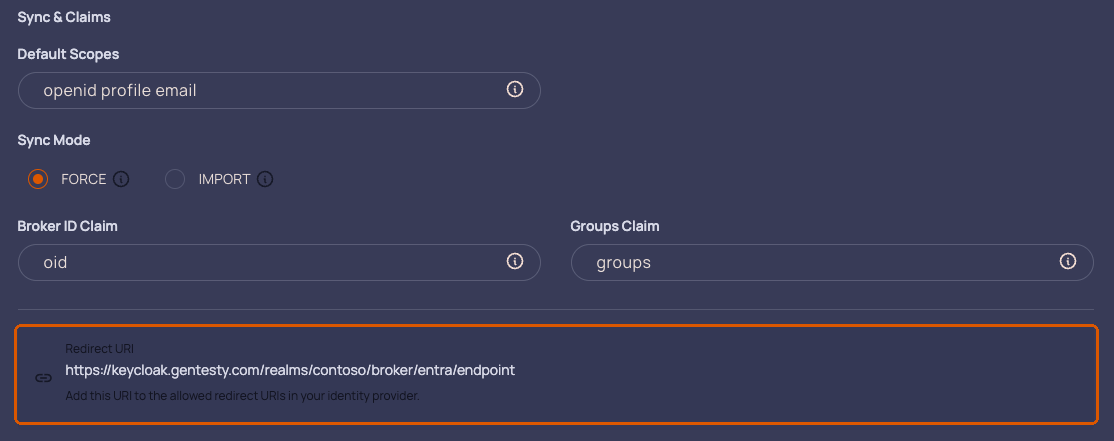
Copy the Redirect URI at the bottom of the card. It appears once a provider alias is entered and looks like this:
https://keycloak.gentesty.com/realms/<workspace>/broker/entra/endpointLeave the Sync & Claims fields as the preset filled them. Keep this tab open, you finish the form in step 9.
02 Register gentesty as an application
Microsoft Entra Microsoft Entra ID › App registrations › New registration
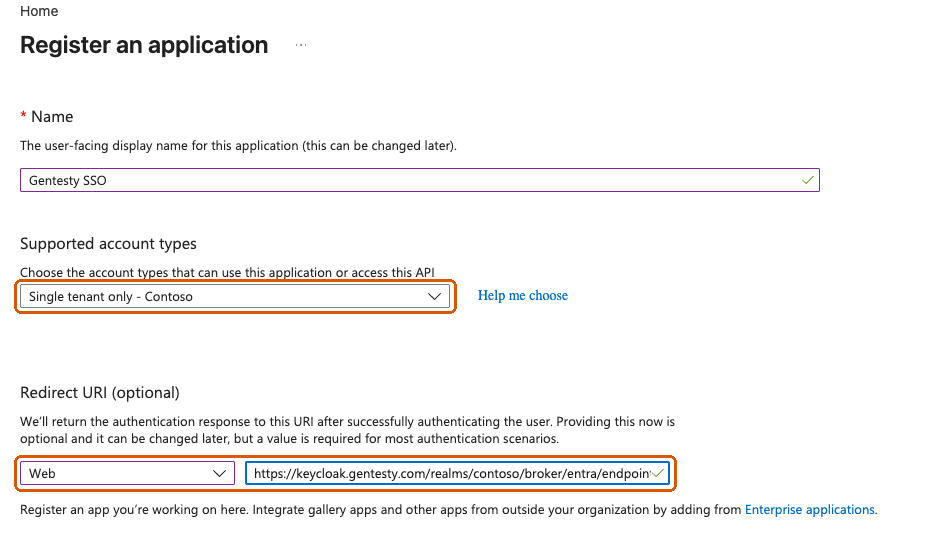
| Field | Value |
|---|---|
| Name | Gentesty SSO, or any name your users will recognise. |
| Supported account types | Single tenant only |
| Redirect URI | Platform Web, then paste the redirect URI from step 1. |
Click Register. Choose Web, not Single-page application, otherwise sign-in fails.
03 Add the sign-out URI
Microsoft Entra Your app › Authentication › Add Redirect URI
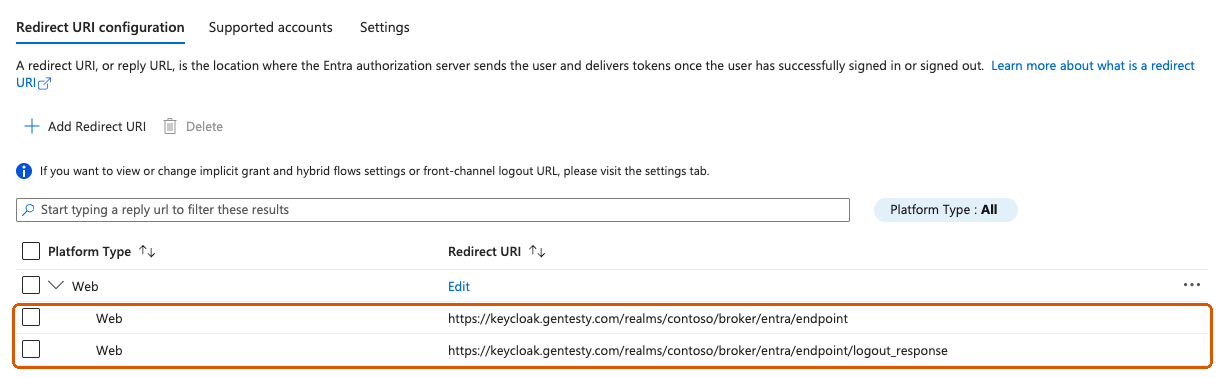
Add a second Web redirect URI: the same address with /logout_response at the end. In the newer Authentication
(Preview) view, Add Redirect URI first asks for a platform: choose Select under Web, paste the URI and
click Configure.
https://keycloak.gentesty.com/realms/<workspace>/broker/entra/endpoint/logout_responseWhen someone signs out of gentesty, Microsoft sends them back through this address. Without it, the user is not returned and the gentesty session stays open.
04 Copy the tenant ID and client ID
Microsoft Entra Your app › Overview
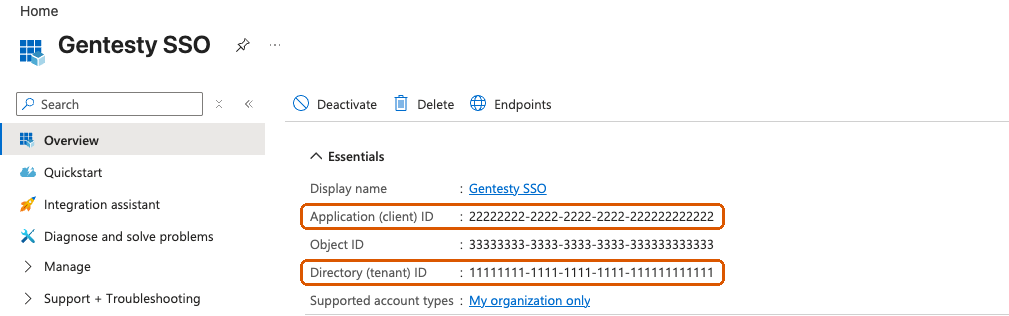
Note the Application (client) ID and the Directory (tenant) ID. You don’t need the Object ID.
05 Create a client secret
Microsoft Entra Your app › Certificates & secrets › Client secrets
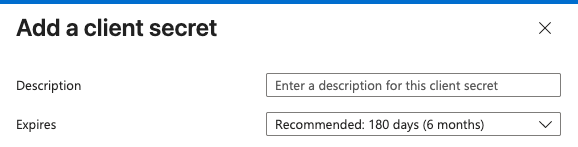
- Click New client secret.
- Enter a description such as
Gentesty SSOand pick an expiry that fits your security policy. - Click Add and copy the Value right away.

06 Send name, email and groups to gentesty
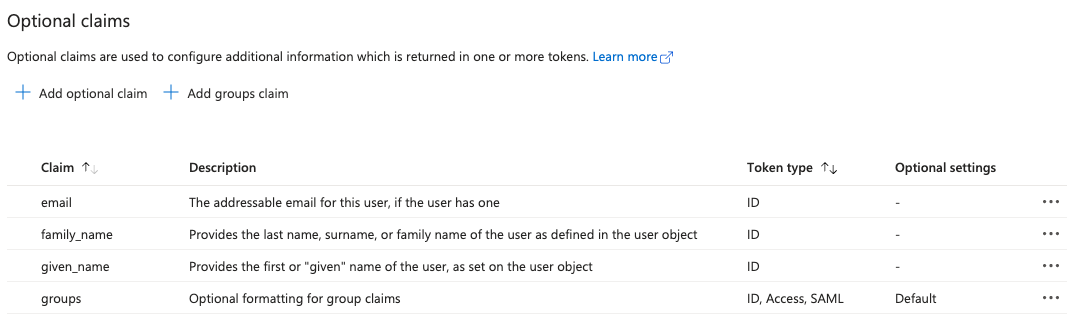
Microsoft Entra Your app › Token configuration
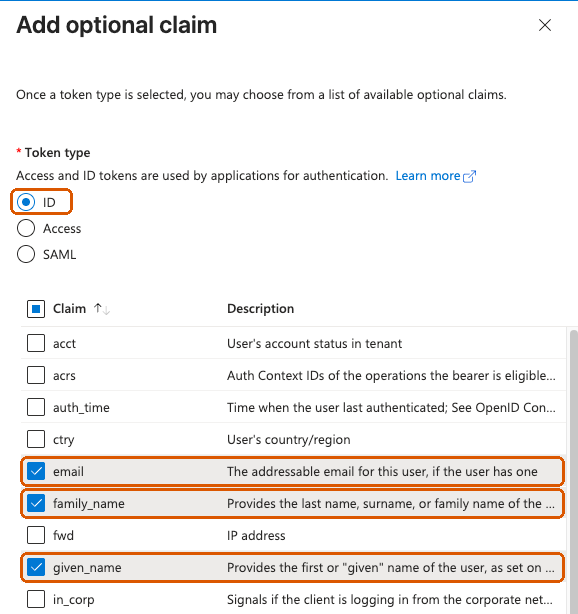
Optional claims. Click Add optional claim, choose token type ID, tick email, family_name and
given_name, then click Add. When Entra asks, tick Turn on the Microsoft Graph email, profile permission and
click Add again.
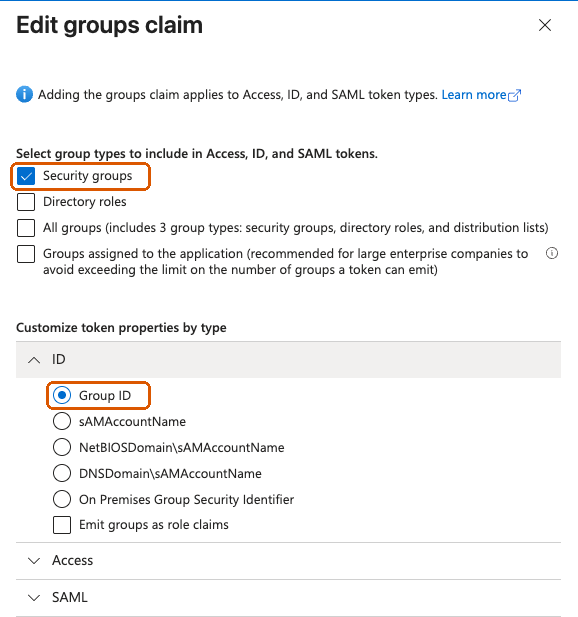
Groups claim. Click Add groups claim, tick Security groups, and under ID select Group ID. Click Add.
07 Grant admin consent
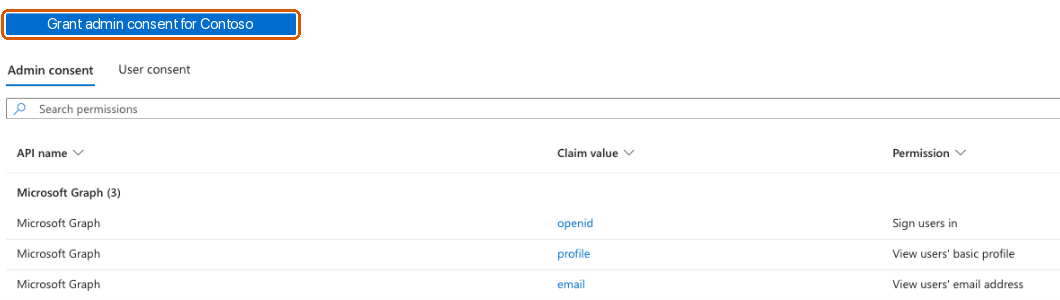
Microsoft Entra Enterprise applications › Gentesty SSO › Security › Permissions
Click Grant admin consent for your organization. Microsoft opens a separate sign-in window where you confirm with
Accept. Afterwards the Microsoft Graph permissions email and profile are granted, plus openid or User.Read
depending on the path you used.
This saves every user a consent prompt at their first sign-in. If your tenant blocks user consent, this step is required. You can also grant consent under App registrations › Gentesty SSO › API permissions, where you confirm with Yes in the portal itself, without a separate window.
08 Look up each group’s Object ID
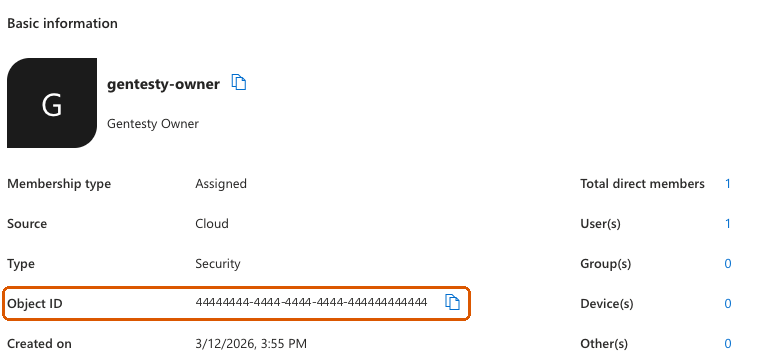
Microsoft Entra Microsoft Entra ID › Groups › All groups
Open each security group you want to map and copy its Object ID. Entra sends group IDs, not names, so the mapping in gentesty must use the Object ID.
09 Finish in gentesty
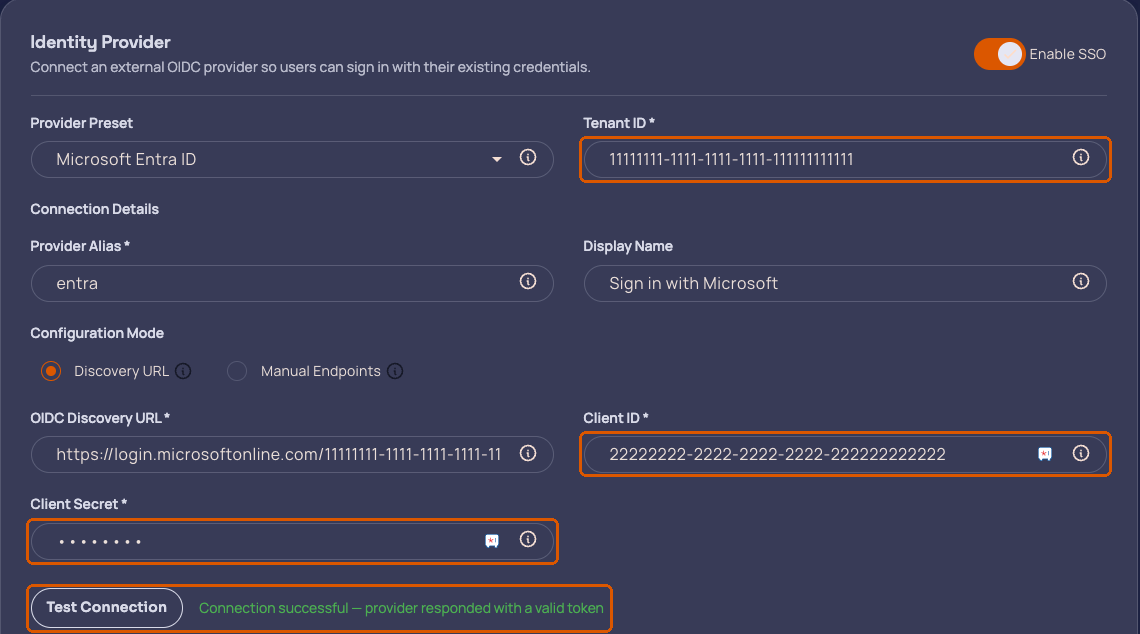
gentesty Account › User Management › Single Sign-On
| Field | Value |
|---|---|
| Tenant ID | Directory (tenant) ID from step 4. gentesty fills the discovery URL from it. |
| Client ID | Application (client) ID from step 4. |
| Client Secret | The secret value from step 5. |
Click Test Connection and wait for Connection successful. The test checks tenant ID, client ID and secret. It does not sign in a user.
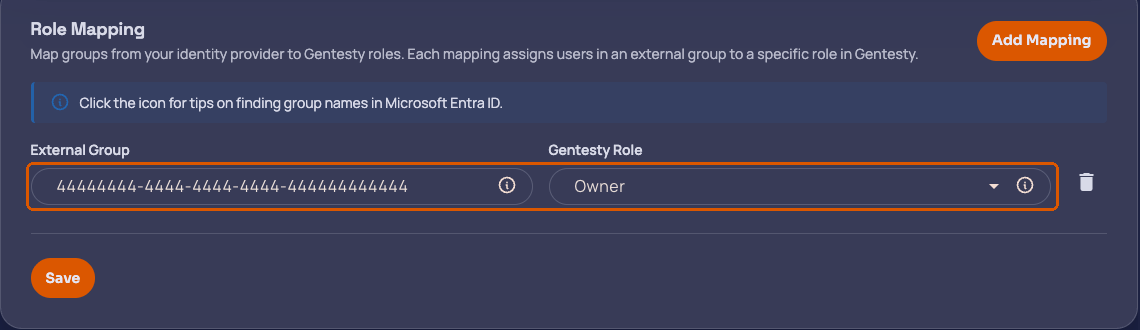
Under Role Mapping, click Add Mapping for each group. Paste the group’s Object ID into External Group and pick the Gentesty Role. Then click Save.
10 Test the sign-in
gentesty Sign-in page
- Open gentesty in a private browser window.
- Click the button with your display name, for example Sign in with Microsoft.
- Sign in with a Microsoft account that belongs to a mapped group. If Microsoft asks which account to use, choose Work or school account, not Personal account.
- Back in gentesty, open Account › User Management › Users and check that the person has the expected role.
Good to know
- An existing gentesty account with the same email address is linked automatically and keeps its data.
- Someone signing in for the first time gets a new gentesty account.
- Roles are refreshed from group membership at every sign-in. Removing someone from a group removes the role at their next sign-in, at the latest within an hour.
- People who are not in any mapped group can sign in, but they get no role and see no workspace data.
- Password sign-in stays available for existing gentesty accounts.
Optional: limit who can sign in
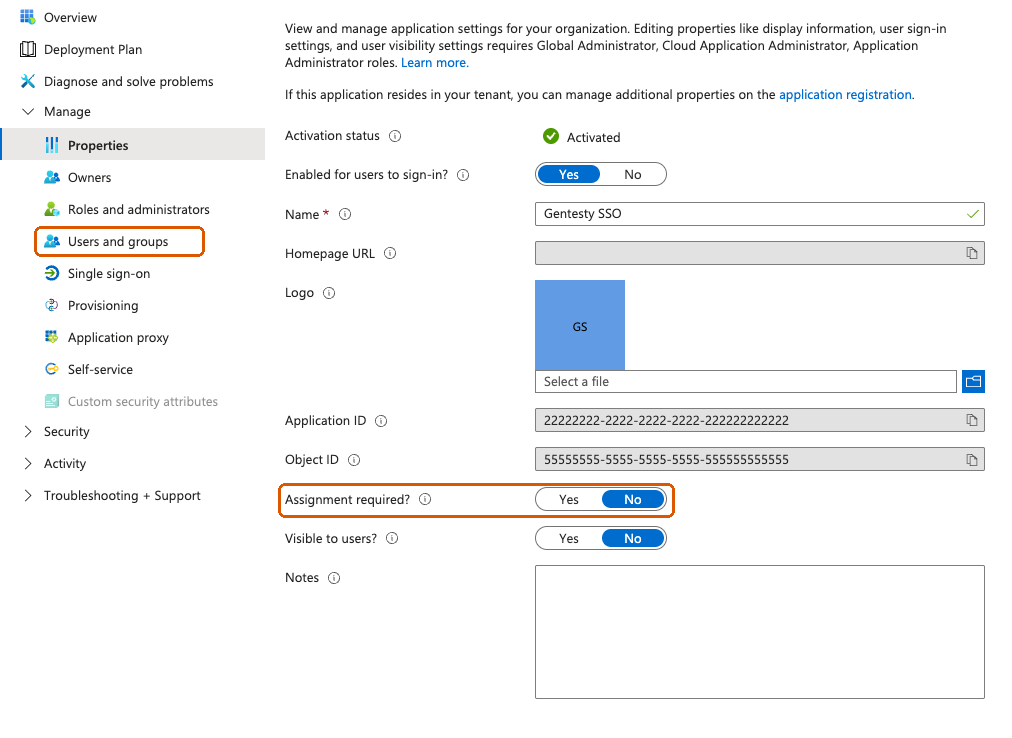
By default every user in your tenant can sign in to gentesty. To allow only selected people:
- Open Enterprise applications › Gentesty SSO › Properties.
- Set Assignment required? to Yes and click Save.
- Open Users and groups and add the users or groups who may sign in. Adding groups requires Microsoft Entra ID P1 or P2.
Renew the client secret
- Before the old secret expires, create a new one as in step 5.
- In gentesty, paste the new value into Client Secret, click Test Connection, then Save.
- Delete the old secret in Entra.
If you change the tenant ID, client ID or alias in gentesty, enter the client secret again before saving.
gentesty roles
Map each Entra group to one of these roles. A person in several mapped groups gets all of their roles.
| Role | What it allows |
|---|---|
| Owner | Full access to every workspace capability, including billing and user management. |
| Workspace Administrator | Manages workspace settings, membership and operational configuration, including SSO. |
| Billing | Manages billing and payments only. |
| Viewer | Read-only access to workspace data and configuration. |
| Bot Administrator | Builds and operates chat, voice and workflow automations. |
| Bot Editor | Edits non-technical bot content and launches runs. |
| Bot Runner | Executes bot runs without changing configuration. |
| Case Administrator | Manages all technical case configuration. |
| Case Editor | Edits non-technical case content. |
Troubleshooting
| What you see | Cause | Fix |
|---|---|---|
AADSTS50011 Redirect URI mismatch | The redirect URI in Entra differs from the one in gentesty, often after the alias changed. | Copy the redirect URI again and update Entra. See steps 1 to 3. |
AADSTS7000215 Invalid client secret | The Secret ID was copied instead of the Value, or the secret expired. | Create a new secret and paste its Value. See step 5. |
AADSTS700016 Application not found | Tenant ID or client ID is wrong. | Compare both with the app’s Overview page. See step 4. |
AADSTS65001 Need admin approval | Admin consent is missing. | Grant admin consent. See step 7. |
AADSTS50020 User account from live.com does not exist in tenant | The email address also has a personal Microsoft account, and that one was picked at sign-in. | Sign in again and choose Work or school account when asked. See step 10. |
AADSTS50105 User not assigned | Assignment is required and the person isn’t assigned. | Add the user or their group under Users and groups. |
| Test Connection: Discovery document could not be fetched | The tenant ID is wrong. | Use the Directory (tenant) ID from step 4. |
| Test Connection: invalid_client | Client ID or secret is wrong. | Check steps 4 and 5. |
| Signed in, but no role or an empty workspace | The person isn’t in a mapped group, the mapping uses a group name, or groups aren’t sent as Group ID. | Check group membership, then steps 6, 8 and 9. |
| Asked to enter an email after Microsoft sign-in | The Entra user has no email address. | Add the email to the user’s properties in Entra, then retry. |
Still stuck? Contact us and include the error code and the time of the attempt.