

Overview
gentesty tests voicebots over the phone network. It calls your voicebot’s phone number, so you need no technical integration. A call works like this:
- gentesty dials the number and waits until your voicebot speaks.
- As soon as your voicebot is silent, a speech-to-text model (STT) turns its words into text.
- A language model plays the caller. It writes the next reply following the test scenario and checks whether the finish criteria are reached.
- A text-to-speech model (TTS) turns the reply into speech, and gentesty speaks it into the call.
- Once the finish criteria are reached, gentesty hangs up and evaluates your voicebot’s answers.
In the dashboard, a test case is called an evaluation.
On Pay as you go and Business, phone minutes cost CHF/EUR 0.04 per minute, on top of your plan’s other costs. gentesty charges them pro rata by the run’s runtime. All prices are under Pricing.
Before you start
- You have access to a gentesty workspace, see Getting started.
- You have the gentesty role Owner, Workspace Administrator or Bot Administrator. These roles can create voicebots and evaluations, start runs and request phone numbers.
- Your voicebot can be reached on a phone number and opens every call with a greeting. gentesty only speaks after your voicebot has said something.
01 Create the voicebot
gentesty Voicebot
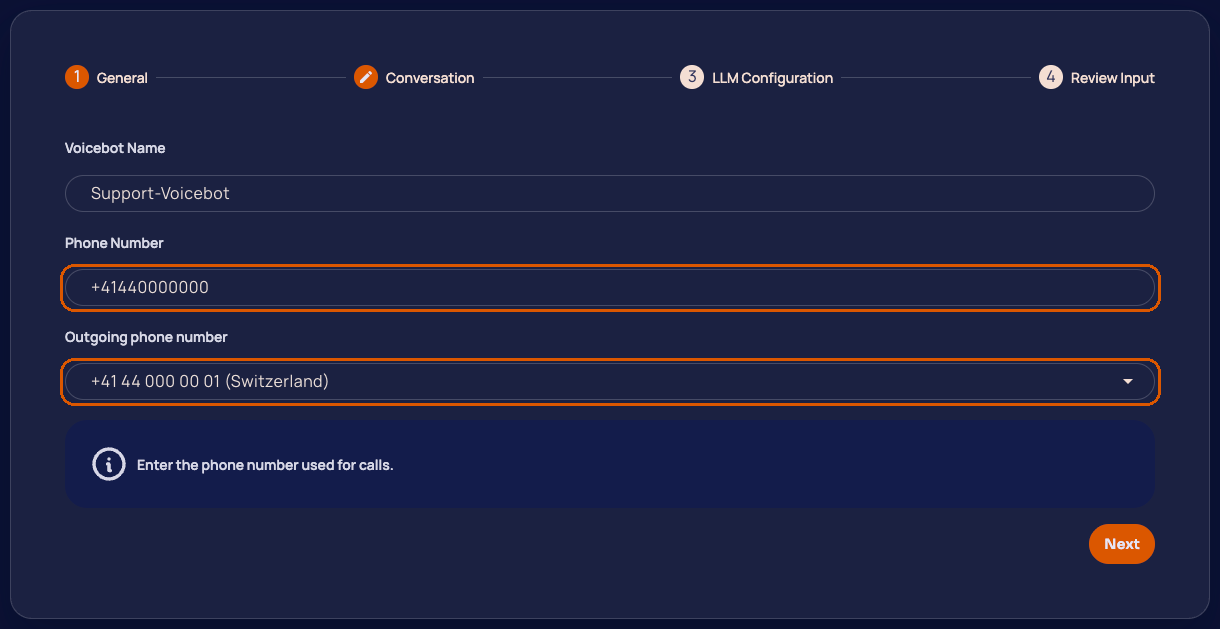
Click + (Add Voicebot) at the top right. The wizard Create a New Voicebot has four steps.
General
| Field | Value |
|---|---|
| Voicebot Name | A name to find the voicebot by in gentesty. |
| Phone Number | The number gentesty calls, so your voicebot’s number. In international format with + and country code, without spaces. |
| Outgoing phone number | The number gentesty calls from. The first entry of the list is preselected. Step 2 explains which numbers there are. |
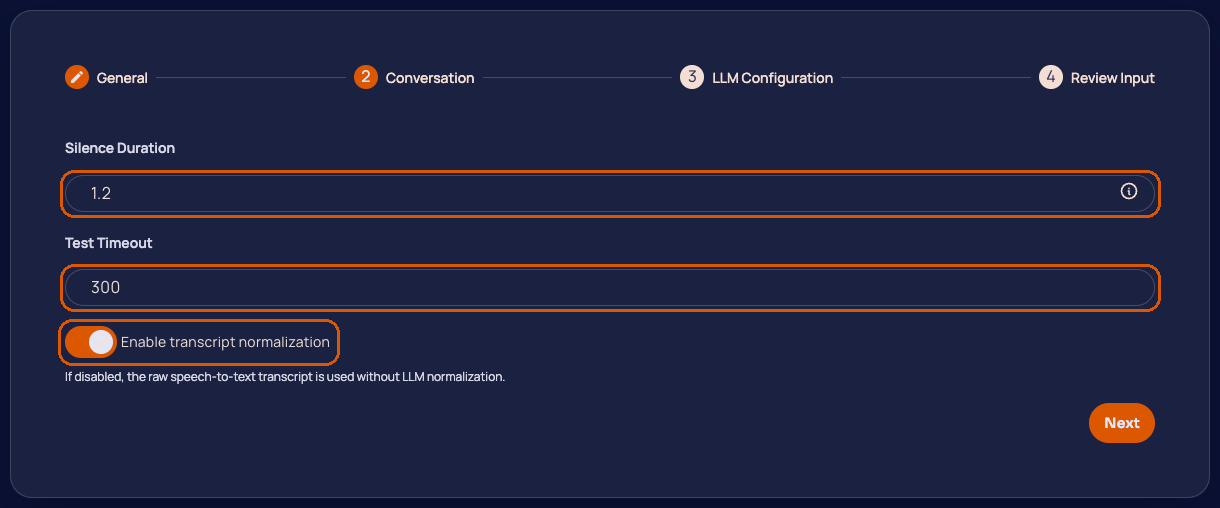
Conversation
Silence Duration and Test Timeout are prefilled. Enable transcript normalization is on: a language model then cleans up the recognised text of your voicebot before gentesty replies to it. With the option off, gentesty uses the speech recognition text unchanged.
LLM Configuration
This step shows which models run the call:
| Field | Role in the call |
|---|---|
| Evaluation LLM | Plays the caller: writes gentesty’s replies and checks the finish criteria. |
| STT LLM | Turns your voicebot’s speech into text. |
| TTS LLM | Turns gentesty’s replies into speech. |
| Transcript Normalizer LLM | Cleans up the recognised text when transcript normalization is on. |
Without Enterprise, gentesty uses its standard configurations automatically and only displays them here. With Enterprise, you pick one of your LLM configurations from LLM Configs for each field. Each list shows only matching models, for STT LLM for example only speech-to-text models.
Review Input
Check the entries and click Save. gentesty opens the voicebot’s page with the tabs Evaluations and Configuration. You change the entries later in the Configuration tab and apply them with Save Changes.
02 Choose the outgoing phone number
gentesty Phone Number
gentesty calls your voicebot from one of the numbers listed under Phone Number. The list shows each number with its country.
- Default number: Every workspace starts with a gentesty default number in Switzerland. It is available on all plans, and several customers share this number.
- Dedicated number: On Business and Enterprise you request a number for your workspace only. The terms are under Pricing.
To request a dedicated number:
- Click + (Add telephone) at the top right.
- In the dialog Request telephone number, choose the Country: Switzerland or USA.
- Click Request. gentesty confirms with Request sent.
Provisioning usually takes 1–2 days. The number then appears under Phone Number and in the Outgoing phone number list. Select it in your voicebot’s Configuration tab and click Save Changes. Until then, gentesty keeps calling from the previous number.
On Free and Pay as you go, + is greyed out and its hint reads Telephone numbers are not included in the current subscription. Your voicebots then call from the default number.
03 Create an evaluation
gentesty Voicebot › Your voicebot › Evaluations
An evaluation describes one conversation that gentesty holds with your voicebot. The form is the same as for chatbots.
- Click + (Add evaluation config).
- Name: Enter the Evaluation Name and pick Tags if needed. Max Ping Pong and Timeout per message (in seconds) are prefilled.
- Evaluation Details: Fill in Initial Message, Expected Outputs, Finish Criteria and Context. All fields are required, and Expected Outputs needs at least one entry.
- Custom Evaluators: Pick your own evaluators if needed.
- Finish: Check the entries and click Finish.
For a voicebot, also note:
- Your voicebot opens the conversation. gentesty only replies after its greeting.
- What gentesty says is written by the Evaluation LLM from Context and Finish Criteria. Describe in the context who is calling and what they want to achieve.
- gentesty compares the entries under Expected Outputs with the text that speech recognition made of your voicebot’s answers. Numbers, names and technical terms can be spelled there differently from how your voicebot said them.
- The conversation ends when the finish criteria are reached or the number under Max Ping Pong is reached.
04 Start a run
gentesty Voicebot › Your voicebot › Evaluations
- One evaluation: Click ▶ (Start) in the Action column.
- Several evaluations: Select the evaluations and click ▶ above the list.
- All evaluations of a voicebot: Under Voicebot, click ▶ on the voicebot’s card.
gentesty calls once per evaluation. The Status column shows one icon per run, for the last 3 runs. Click an icon to open that run’s result.
05 Review the result
A run’s result page has these sections:
| Section | Content |
|---|---|
| Costs | The run’s costs, for voicebots with the line Phone costs. Only visible if your role may see billing data. |
| Evaluations | Each evaluator’s verdict. |
| Full Call Recording | The recording of the whole call in the Full Conversation player. |
| Configuration | Initial Message, Expected Outputs, Context and Finish Criteria the run used. |
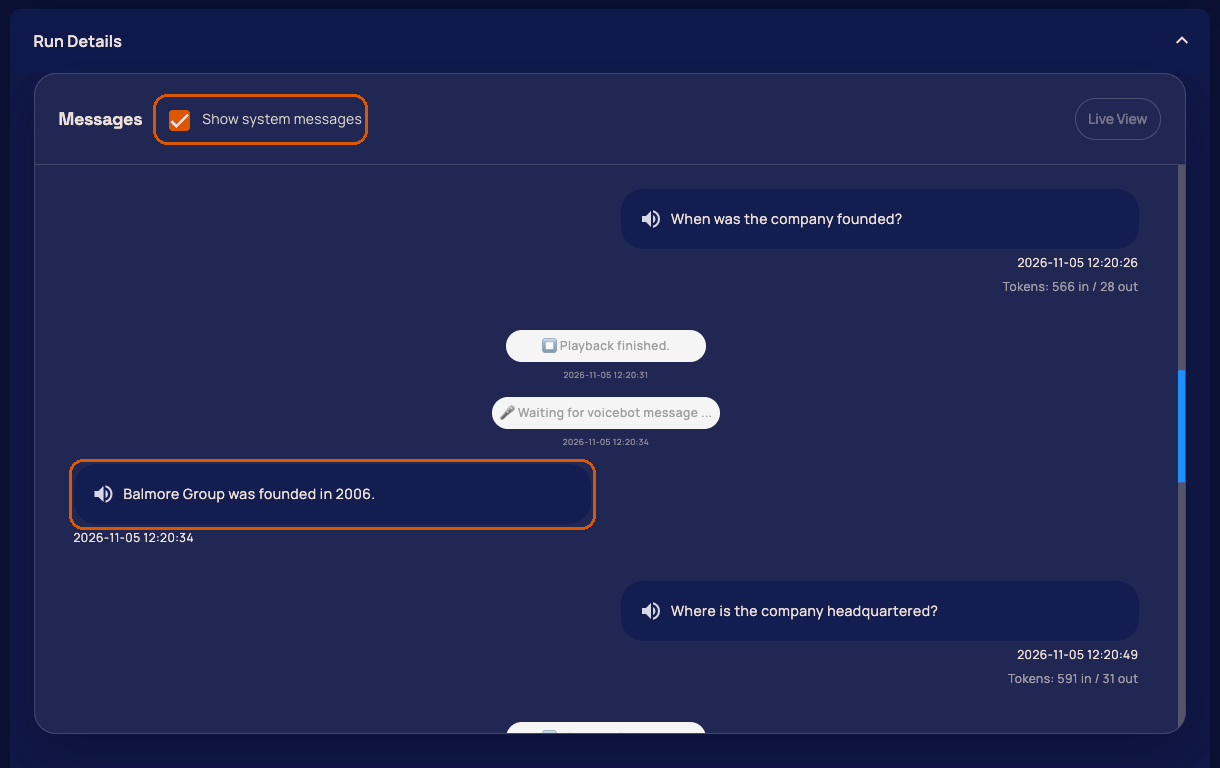
| Run Details | The transcript under Messages. |
Listen to the recording
Click Play in the player. The waveform shows in colour who is speaking: Customer Bot is your voicebot, Gentesty the caller, and Silence marks pauses. Click into the waveform to jump to that point.
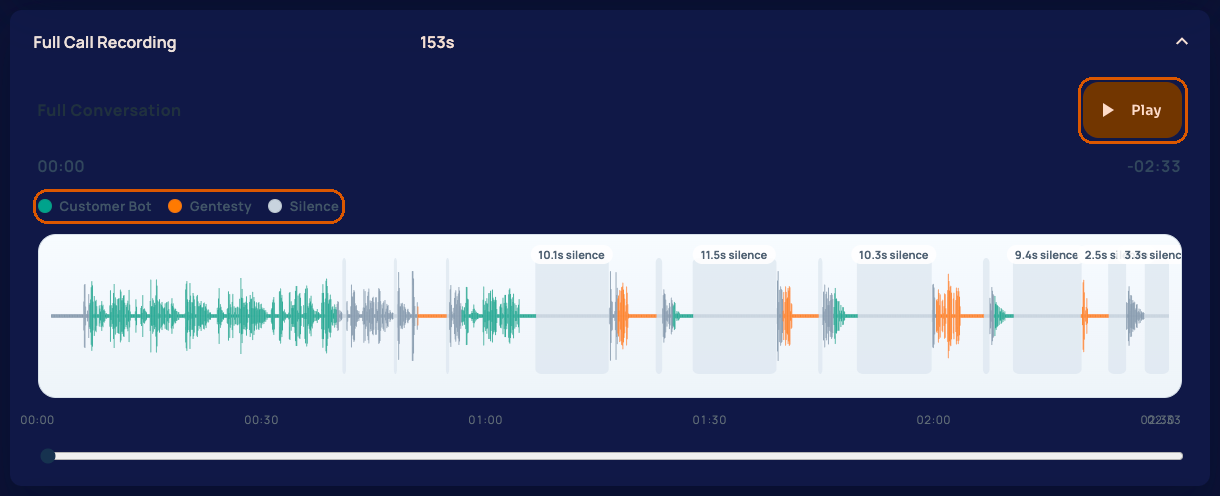
The recording is only available after the call has ended. The section appears as soon as it is ready. If it is still missing after a while, reload the page.
Read the transcript
- Messages shows the conversation turn by turn. Your voicebot’s messages show the recognised text, or the cleaned-up text when transcript normalization is on.
- The speaker icon on a message plays its audio.
- Show system messages adds gentesty’s status messages, for example when the call was connected and when it ended.
Troubleshooting
| What you see | Cause | Fix |
|---|---|---|
| Phone Number is marked red in the wizard. | The number contains spaces or characters other than digits and a leading +. | Enter the number in international format without spaces. |
| Under Phone Number, + is greyed out: Telephone numbers are not included in the current subscription. | Dedicated numbers start with Business. | Use the default number or change the plan. |
| In the LLM Configuration step, Next stays greyed out. | A field has no model. With transcript normalization on, this includes Transcript Normalizer LLM. | Pick a model for each field or turn off Enable transcript normalization. Without Enterprise, contact us. |
| On saving in the Configuration tab: Configuration could not be saved | A model does not fit its field, for example a chat model under STT LLM. The message at the field names the model. | With Enterprise, pick a matching model via Edit, otherwise contact us. |
| The call connects, but gentesty says nothing. | gentesty waits until your voicebot speaks. | Set up the voicebot to open the call with a greeting. |
| System message Max duration reached. | A call lasts 5 minutes at most. gentesty then ends it. | Write finish criteria that end the conversation sooner. |
| System message Call ended shortly after the start, no evaluations. | The call ended before the finish criteria were reached, for example because the number is unreachable or your voicebot hung up. | Check Phone Number Voicebot in the Configuration tab and call the number yourself as a test. |
| System message STT output looks garbled even after retry | Speech recognition returned unreadable text twice in a row. gentesty then hangs up. | Check your voicebot’s audio quality. With Enterprise, pick a different STT LLM. |
| System message Max Ping Pong reached | The finish criteria were not reached when the number under Max Ping Pong was reached. | Check the finish criteria and the transcript, or raise the value. |
| System message The chatbot said the same thing 3 times in a row | Your voicebot said the same thing several times in a row, also in other words. | Check in the transcript where your voicebot gets stuck. |
| System message The conversation ended without reaching the finish criterion | The test customer said goodbye and your voicebot had nothing more to add, but the finish criteria were not met. | Check in the transcript how the conversation ended. If that outcome is valid too, word the finish criteria so they cover both outcomes. You can turn the stop off under Stop the conversation when it is over on the voicebot or the test case. |
Still stuck? Contact us with the voicebot’s name and the time of the run.